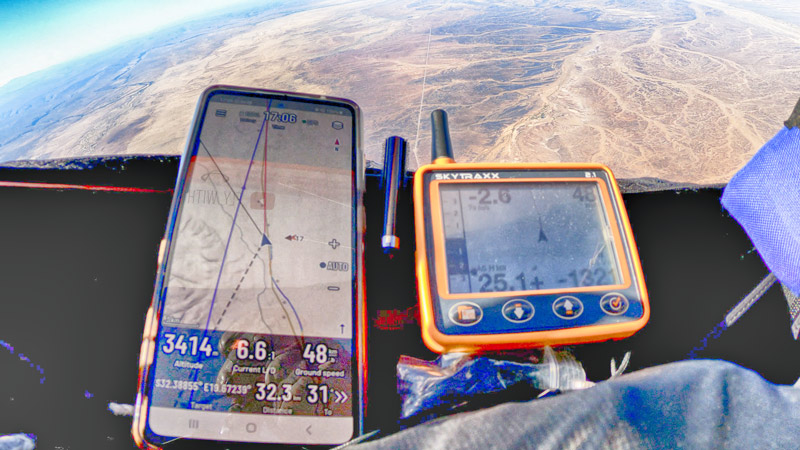
Get ready for your flying week and learn how to set up Puretrack

Gear check
Prepare to succeed

Reserve parachute repacked?
Wing serviced?
Flying weight is in range?
Medical & rescue insurance sorted?
Valid Passport (need a Visa?)
Got some cash (Euros)
Roaming data plan
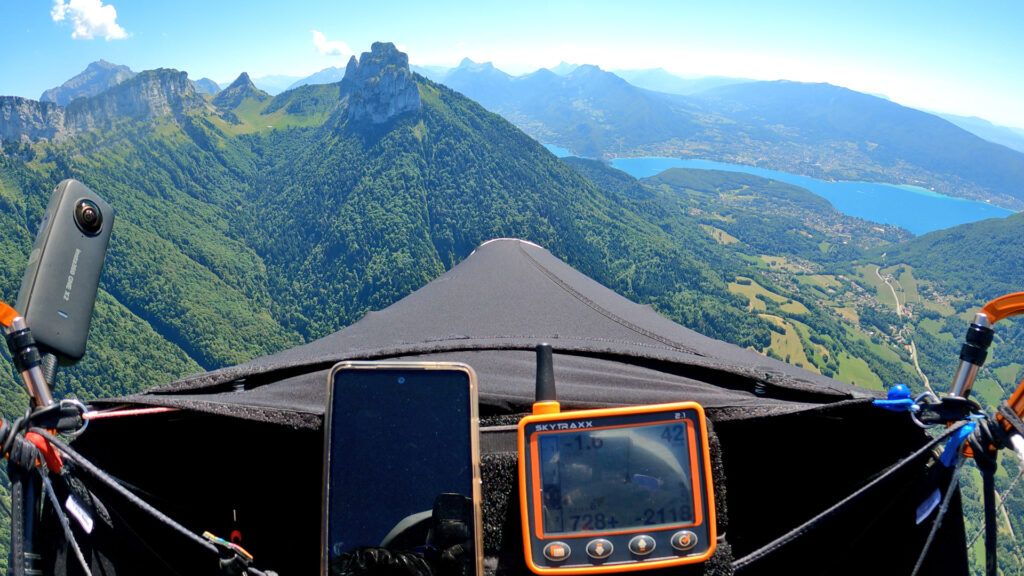
Set up your phone
Oudie/Omni users can skip this step
Get a phone case
Get self-adhesive velcro
Get a charger battery and cable
Get a cockpit (or a pod harness)
Check the phone is visible in flight

Get the apps working
for the best experience
Install Seeyou Navigator (paid) *
Set up a Puretrack.io account (free)
Open Navigator and Press FLY
Log in to Puretrack
Find yourself on the map
Click the “i” info button and look at Source ID for your hex code
* You don’t have to use SeeYou Navigator for live tracking, but it will reduce your tech headaches, especially when it comes to sharing and following XC tasks. Alternatively you can get a dedicated large screen instrument for mapping, like Naviter Oudie N from https://bit.ly/navitershop
You could test whatever app or instrument you want to use for live tracking in the same way, and get the hex code / FLARM ID off Puretrack.
You can also find your hex code in Navigator under Menu -> Settings -> Other -> About -> OGN address.
Right. You’ve got your hex code. What do you do with it?
Open the Puretrack main menu > Your name > Manage Trackers
First Add a Map Marker and use a name we’ll all recognise in a crowded sky. Then Add a Data Source > Navigator, check the Custom Map marker you just made and enter the hex code.
Job done! Now you’ll show up as Superfly Joe.
One last thing
On launch, open Navigator and press FLY. This will automatically track you and your name will show up on Puretrack. If you don’t want to use the phone in flight for navigation that’s fine, stow it in your pocket, the tracking will still work.
Navigator provides a beautiful terrain map with rich info overlays like thermal hotspots and Skysight weather forecasts. It’s very useful for airspace avoidance and route navigation.
It works fine on its own (with the phone GPS) but if you’d like the most accurate aviation altitude and improved thermal mapping, then link a bluetooth vario to it.
If you’d like to see the other pilots onscreen you can use Settings > Radar > OGN and Puretrack. You might also want to update your Pilot Name.
You can also choose to log your flights automatically on XContest. One less thing to waste time on in the evening. Let’s celebrate your XC instead!
Do a test
Here’s a simple task you can use, to check everything is set up right.
You’ll need the paid plan on Navigator to be able to scan the QR code. If you use another app or instrument, test your workflow!
Open this TASK using a computer.
Click Share, and the QR code will pop up. Open Navigator on your phone, click Home, Set Task, QR code. Scan the code from the computer screen (or a friend who can Share via QR code). If it loads, press the back arrow, then FLY.
This is so useful in the morning briefings. It takes less than a second to get your task all set up, and you can just follow the arrows – it’s satnav, in the sky!